Categories
Link Broker / Data Source
To connect to your Prop Account or Live Money Brokerage account, be sure to load the Link Broker / Data Source menu.
By default, the menu will always appear at the center of your platform screen when you log in. To disable this, be sure to uncheck the box at the bottom left corner of the menu that says "Show brokers on login?".
If you close the Link Broker / Data Source menu, you can retrieve it by clicking on "Statuses" at the top right corner of your platform and then selecting "Link Broker / Data Source".
WealthCharts Prop: These are connections regarding Prop Firms. Looking to sign up for a new prop account? Head over to wealthcharts.com/prop to learn more!
WealthCharts Live: These are Brokerage connections regarding Real Money accounts.
Favorites: Save yourself a few clicks and favorite your favorite connection so that you can quickly select your account and log in! To add to the favorites section, be sure to select the star icon at the top right of the connection.
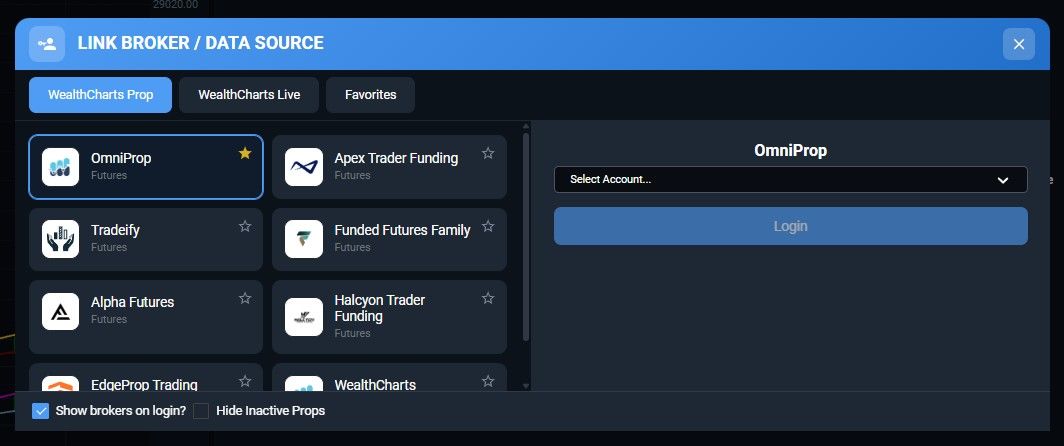
Hide Inactive Props: Checking this box will hide all prop firms that you don't have an account with. Allowing you to clearly see where your accounts are and log in easier.
Hide non-active accounts: Checking this box will hide all accounts that are no longer active when you select the dropdown for the account selector.
System Status:
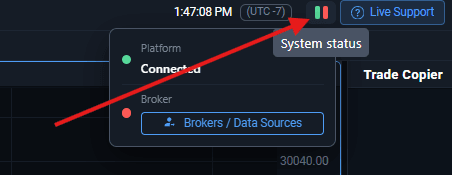
Statuses can be found at the top right corner of your platform screen by the clock. Statuses show you the different connections you are running on the WealthCharts platform.
The first green dash will always show if you are connected or not to the WealthCharts servers.
The second green dash will always show if you are connected to a Live Money Brokerage or Prop Firm.
A third red or green dash will appear if you connect to a Prop Firm as this shows you if you are connected to Copy Trading or not. You can toggle Copy Trading on or off at anytime.