Categories
Changing Symbols / Symbol Search
WealthCharts offers a couple of ways to call up the symbol search menu, which is where you can search and select the symbol that you want to see on your chart.
The symbol search buttons
Up in the top left corner of the platform, there are two buttons. One has a magnifying glass icon, and the other has an image of the symbol/ticker. Selecting these will take you to a symbol search menu.
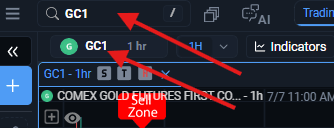
Before using it, make sure that you pick the correct chart. If you have multiple charts open, be on the lookout for a blue outline that is. To do that, simply click anywhere on the chart that you want to change, and you will see the chart tab highlighted with a blue color.
Search for a symbol – right click menu
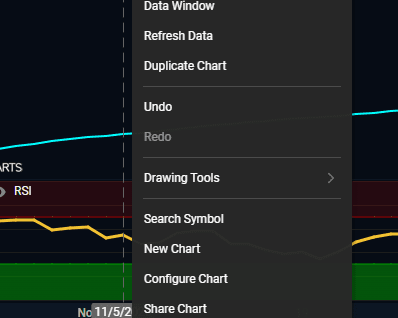
The right click menu also contains a shortcut to the symbol search menu. Simply right click your chart, and select “Search Symbol” in the dropdown menu:
Select your chart and start typing
Alternatively, the quickest way to call up symbol search is to click on the chart that you want to change, and simply start typing the ticker or the stock name that you want to change to. This will immediately call up the symbol search menu with the input that you were typing previously.
Once you are in the Symbol Search menu
Regardless of how you have accessed it, the symbol search menu is always the same. Here, you can type the ticker or the stock name that you are looking for, which will generate search results below:
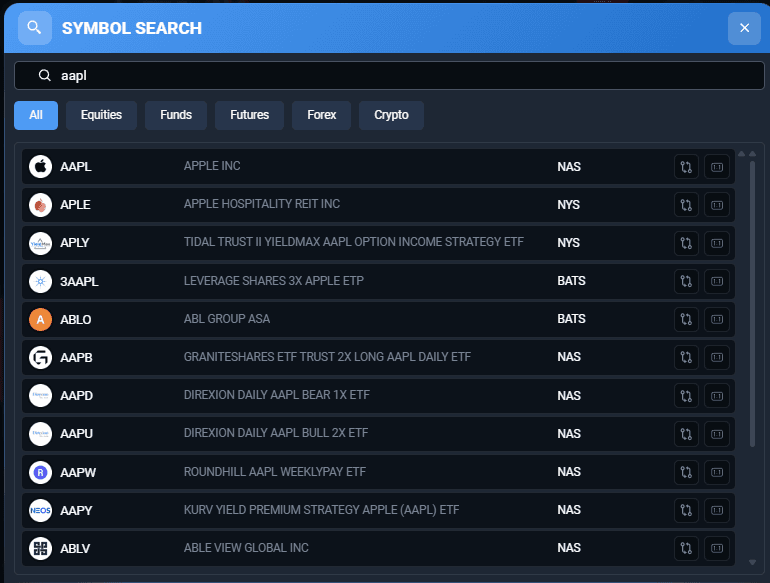
Above the list of instruments, you will see several different categories like All, Equities, Funds, Futures, Forex, and Crypto. If you wish to see more instruments in those categories simply select the category and you will see a new list load.
Clicking on any of the stocks in this list will change your chart to that symbol. Note that next to the stock names, you will also see a label that indicates which part of the datafeed a stock belongs to, such as NAS (Nasdaq), NYSE (New York Stock Exchange), LSE (London Stock Exchange), BOM (Bombay Stock Exchange), TSX (Toronto Stock Exchange), LMAX (Futures, Forex and CFDs), etc. Symbols that belong to a broker datafeed will also have that broker’s name listed there instead.
Additionally, two buttons are available on the right side next to each of the search results – Add As Compare and Add as Ratio. Make sure to take a look at the related articles below about these features if you would like to learn more about overlaying your chart with other stocks or creating ratio charts!