
Data Window
Updated
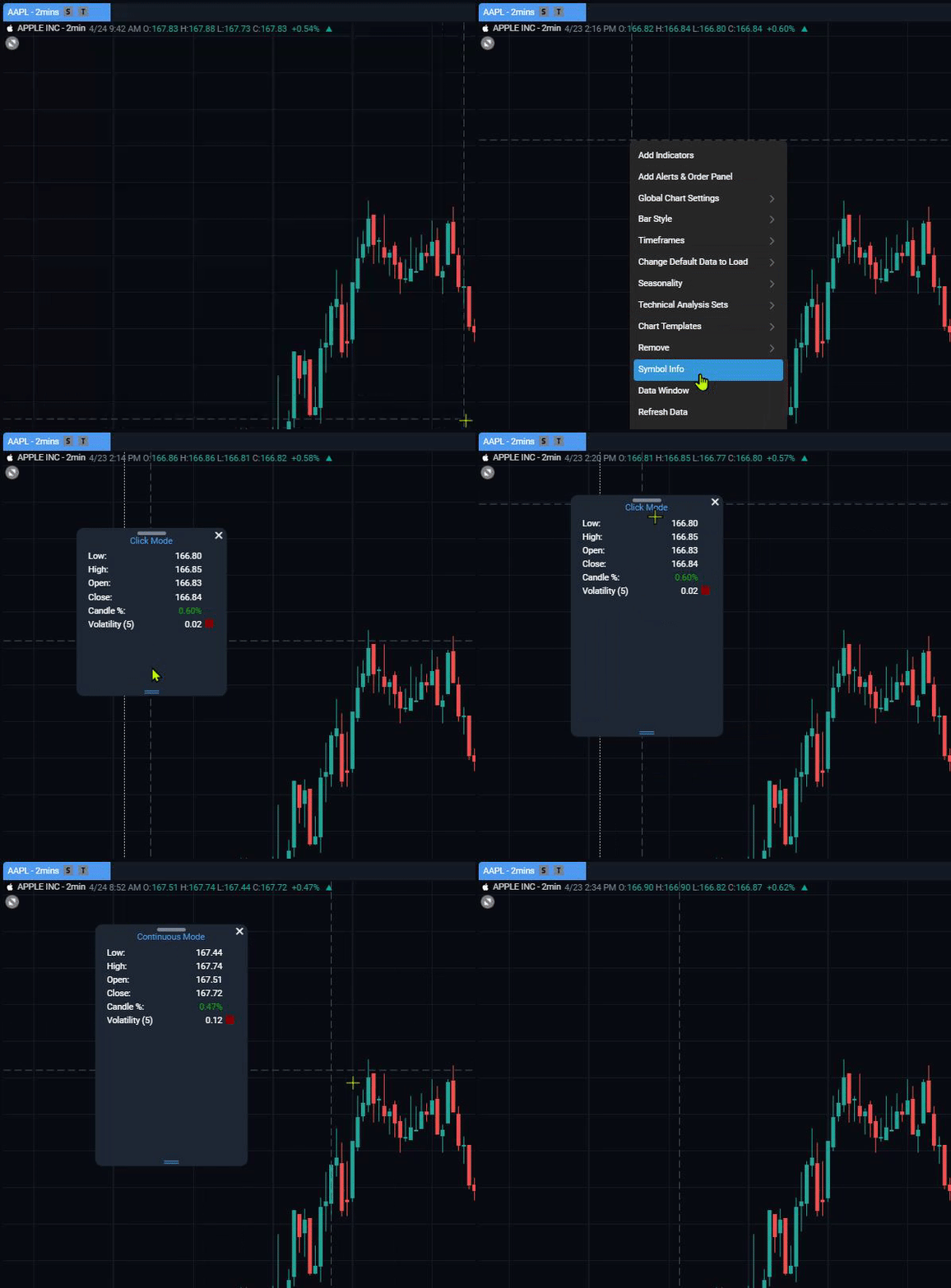
The Data Window on WealthCharts allows you to easily see the High, Open, Low, and Close of each bar on your chart. If you have indicators loaded onto your chart, the value of which the indicators are signaling will also show on the Data Window.
To place the Data Window on your chart, right-click anywhere on your chart and then select Data Window and it will appear at the top left corner of the chart. You can also select the Data Window icon (Crosshair) on the left chart toolbar.
After the Data Window loads, you can switch back and forth between Click Mode and Continuous Mode.
Click Mode allows you to specifically click on any candlestick to update the values in the Data Window. This way you don't have to keep your mouse steady when viewing the data.
Continuous Mode means the values will update and change as you move your cursor throughout the chart.
To remove the Data Window, simply select the "X" at the top corner of the tool. To move the Data Window, hold down the left button on your mouse at the top of the window and drag it anywhere on the chart. To resize the Data window, drag the bottom part of the window up and down to resize it.
Pro Tip: If you have your crosshair turned off, the Continuous and Click Modes will not appear. Check your Global Chart Settings to find your crosshair feature.
To see the Data Window in action, please review the video below: