Scanner Alerts for Mobile
Updated
Stay informed without staying glued to your screen — receive real-time alerts the moment your criteria are met!
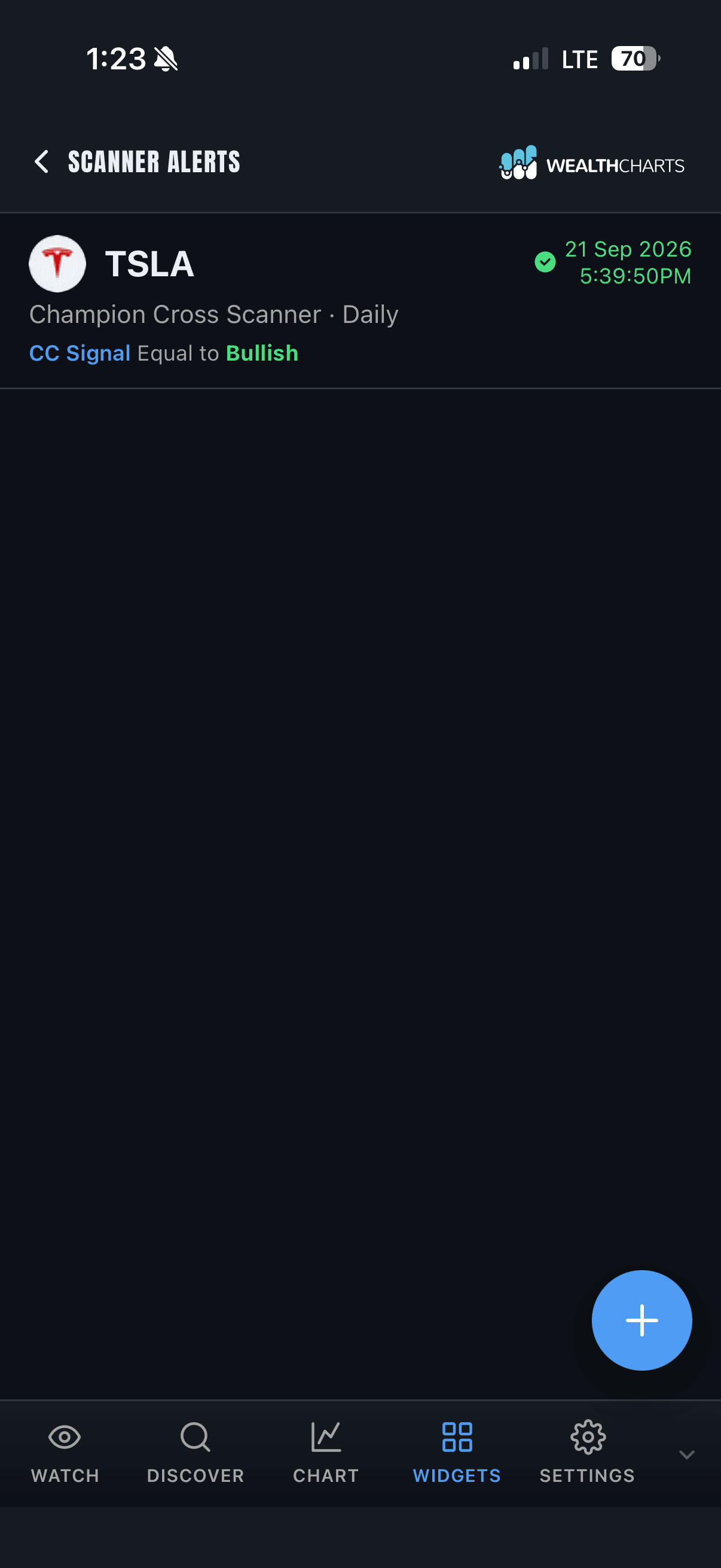
To find the Scanner Alerts feature, tap the Widgets icon on the bottom Navigation Bar to open the Widgets Page. From there, swipe down until you see the Scanner Alerts Widget within the Market Tools section. You can also search for it by tapping the blue plus icon in the bottom right corner of the page! Once the Scanner Alerts Widget opens, you will see a layout similar to the image below.
Create Alerts
Tap the plus icon within the blue circle in the bottom right to create a new Scanner Alert. From the menu, select the specific scanner you want to use, then choose your symbols, timeframes, and the conditions that match your criteria. Once you have everything set, choose how you want to be notified — Desktop, SMS, or Email!
Deleting an Alert
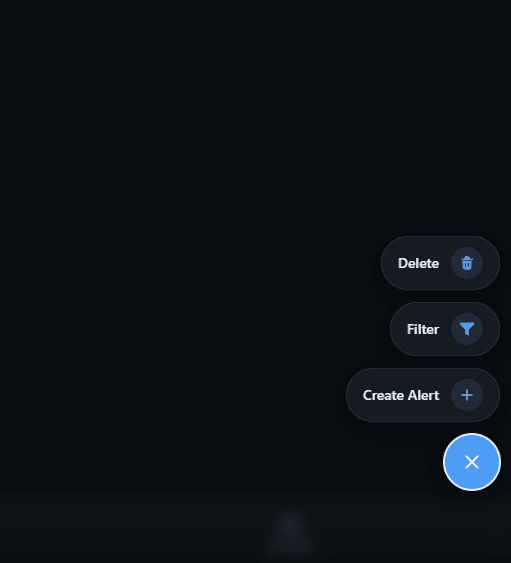
To delete a single alert, swipe left on it to reveal a red trash can icon and tap it to remove that alert. Need to clean house? You can also mass delete alerts by tapping the trash bin icon located within the blue plus icon's menu in the bottom right.
Filter
To access filtering options, tap the same blue plus icon used to create alerts, then select the funnel icon. From here you will find all of the available filter options that WealthCharts offers to help you narrow down your alerts!