On Chart Trading from the Order Panel
Updated
The Order Panel is an essential tool for quickly executing trades directly from your chart. It allows traders to place, modify, and manage trades efficiently without navigating away from the chart they are working on. This guide will walk you through the key components and features of the order panel, enabling you to execute your trading strategies with precision.
Key Features Overview
• Account Selection: Easily toggle between different trading accounts.
• Quantity Control: Set the number of contracts or shares to trade.
• Order Types: Choose between normal and single/multi bracket orders
• TIF (Time in Force): Manage how long an order remains active.
• Quick Trade Execution: Buy or sell instantly at the market price.
• Order Management Tools: Flatten, reverse, and cancel orders directly from the panel.
1. Trade Settings and Tour Guide
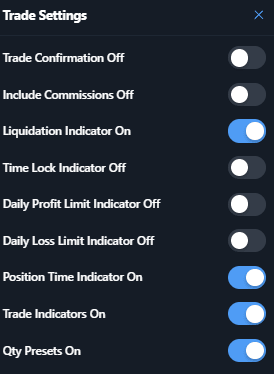
The Trade Settings menu lets you control which items appear on the chart when you're trading with the on-chart order panel.
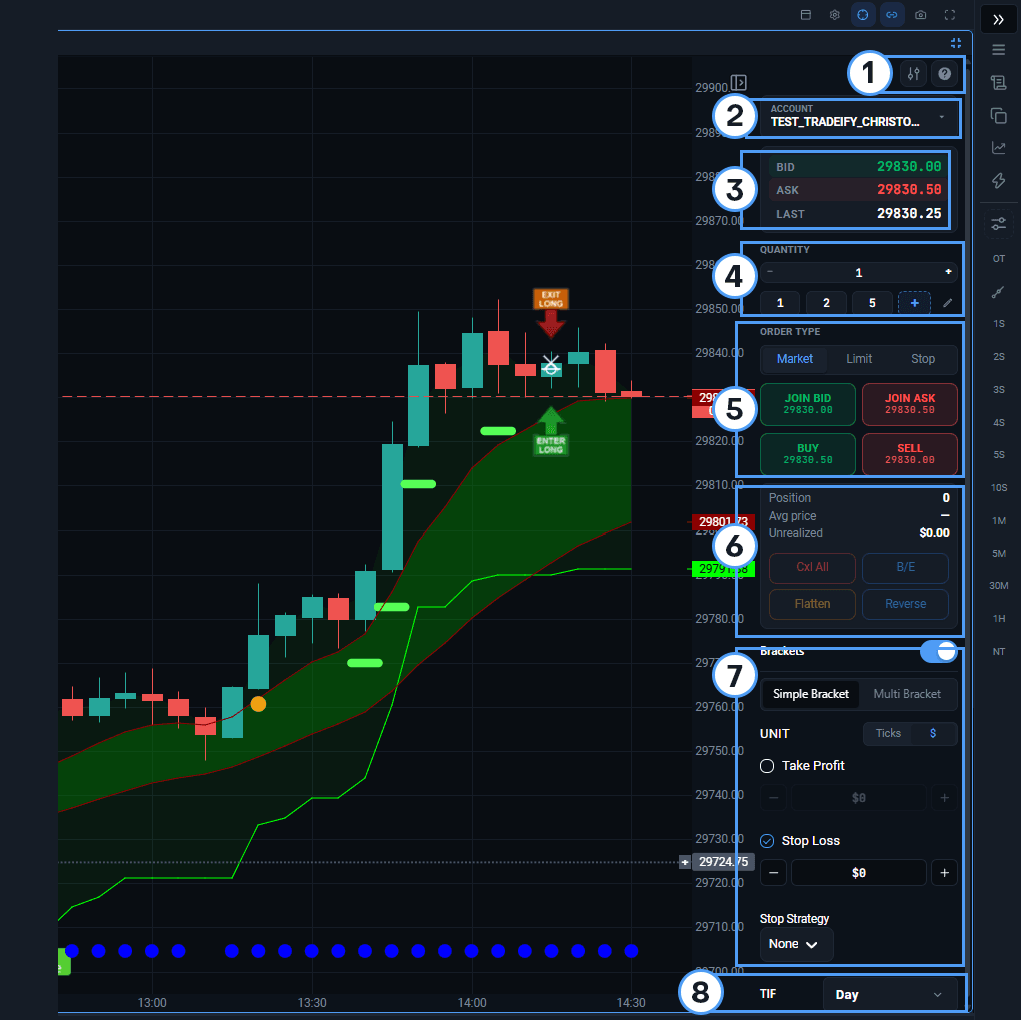
The Tour Guide button will show you what each section does within this order panel.
2. Account Selector
Pick which trading account this order panel places orders in.
3. BID, ASK, LAST
This section shows you the current Bid level, Ask level, and the Last Price detected from the symbol that is currently attached to the order panel.
Bid Price/Level: The max price a buyer offers.
Ask Price/Level: The min price a seller wants.
4. Quantity Changer
Set how many contracts or shares to trade — type a number or use the +/- buttons.
5. Order Types
Choose Market, Limit, or Stop for how your order gets filled. Buy and Sell place your order at the market price. Join Bid and Join Ask place a limit order at the best available bid or ask.
Buy Mkt: This button allows you to instantly place a market buy order, executing the trade at the current market price.
Sell Mkt: Similarly, this button instantly places a market sell order, selling at the current market price.
Join Bid / Join Ask: These buttons allow you to place a limit order at the current bid or ask price, joining the current market participants who are waiting for execution.
6. Position Information
This will show you the PnL of the current position as well as the average price and the Unrealized PnL.
Flatten: Instantly closes all open positions in the selected account, effectively taking you out of the market. It’s a quick way to manage risk or lock in profits. Reverse: This button reverses your current position. If you are long 100 shares, clicking “Reverse” will sell those 100 shares and place a short order for 100 shares, effectively switching your position to the opposite direction. Cxl All: This button provides an efficient way to cancel all working orders with a single click. This is especially helpful in fast-moving markets where you need to retract multiple orders quickly. Breakeven (B/E): This button moves all active stop orders to the breakeven level with a single click. This is especially useful in fast-moving markets, allowing you to quickly eliminate risk and protect your position.
7. Brackets
This is where you can turn on Simple Brackets or Multi Brackets. You can add Take Profit, Stop Loss, Trailing Stop, or Breakeven to manage risk automatically.
8. TIF (Time in Force)
The TIF (Time in Force) dropdown allows you to specify how long the order remains active. Options include:
• Day: The order will be active for the current trading day and expire if not filled by market close.
• GTC (Good 'Til Cancelled): The order remains active until it is either executed or manually cancelled.
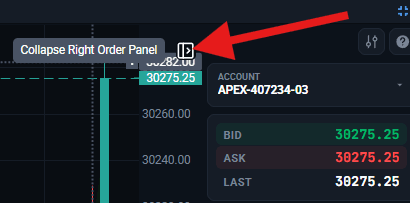
Did you know: The chart panel can be hidden – just use the icon below that's located at the top right of each of the charts to hide/unhide it.