Favorites Bar
Updated
On WealthCharts, you can have your trading favorites, your way. ✅
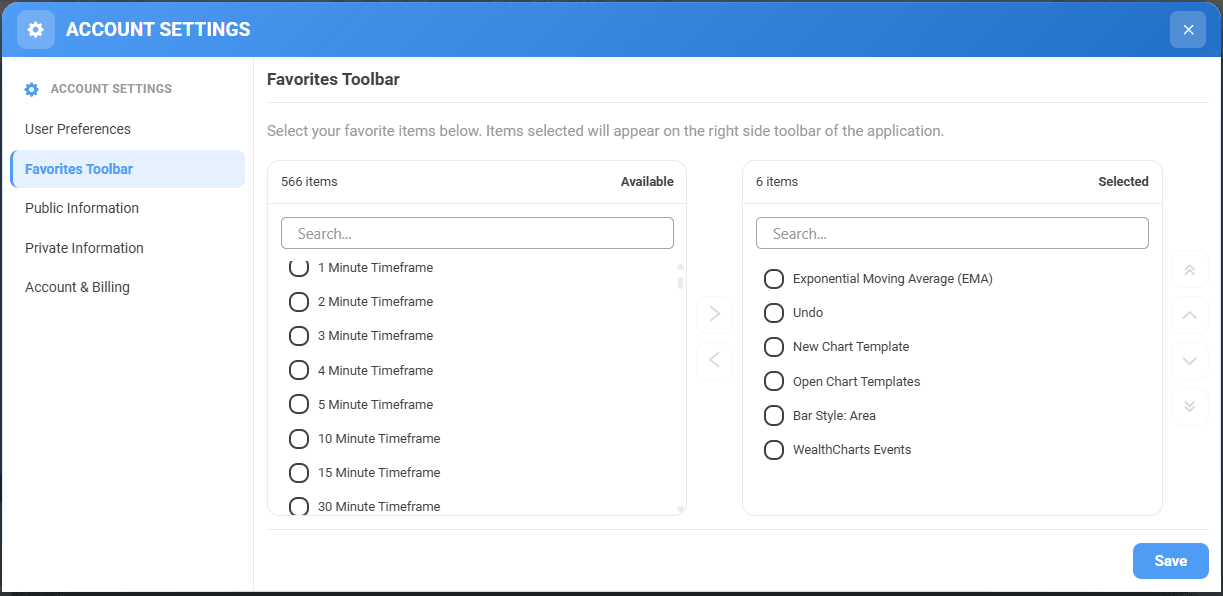
Tailor your trading experience to your unique preferences by effortlessly adding and arranging your most-used tools and indicators in the Favorites Toolbar. Follow the instructions below to get the toolbar set up the way YOU want it!
1. Click on the gear icon located at the bottom left corner of your WealthCharts platform.
2. Select Customize Favorites Bar.
3. You will be taken to a menu with two sets of boxes. The left side box is all of the tools that can be entered into the Favorites Toolbar. The right side box is the list of tools that are currently on your toolbar.
4. Click any tool and then select the right pointing arrow button to move it to the opposing side.
5. After you are finished, hit the blue "Save" button at the bottom right corner of the modal.
6. Look to the right of your platform and you will see new acronyms representing the new shortcuts you've just changed, timeframes you may have added, etc.
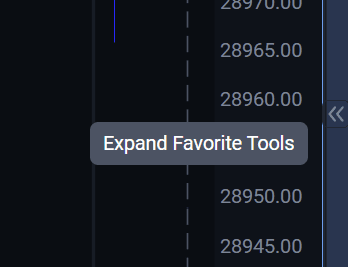
Pro Tip: Did you know that you can hide and unhide your Favorites Toolbar? If you do not see the toolbar, simply hover your cursor over the right side of your platform and you will see a tool tip appear saying "Expand Favorite Tools". Clicking that will make the toolbar reappear, see below for a visual aid!
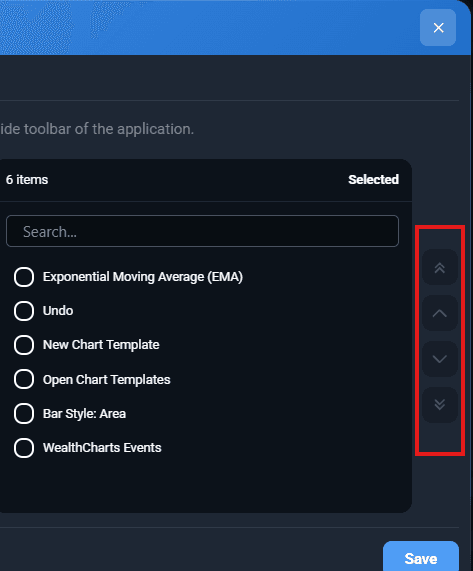
Pro Tip: Did you know that you can change the order of the shortcuts displayed on your Favorites Toolbar? You can click and drag the icons on the toolbar up and down to move them wherever you like. You can also use the up and down arrows in the menu when you are updating your Favorites Toolbar. See the image below for a visual aid!