
Refresh Data
Updated
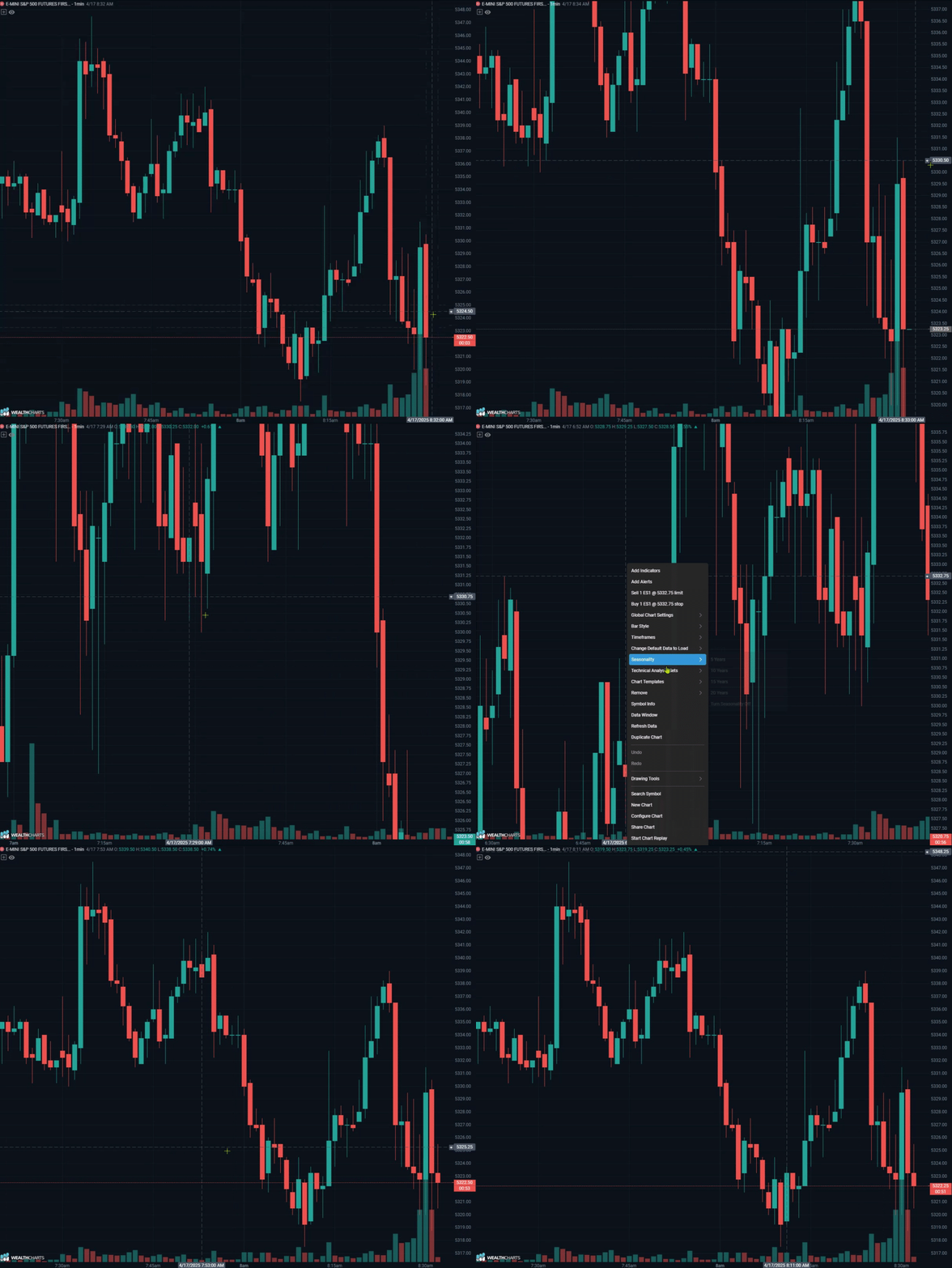
After navigating around the charts on the WealthCharts platform, you might have gotten lost by moving way too far to the left or way too far to the right. You may have also extended your bars to be too long or too thin by using the price axis. You may just be wanting to double-check to ensure the data and signals are coming through okay on your graphs. If this has happened to you, the Chart Refresh option is best to use.
To find Refresh Data, refer to the two arrows forming a circle on the far left-side toolbar. Alternatively, you can also find this option by right-clicking your chart and then selecting "Refresh Data". After clicking this, you will see your chart load back to the WealthCharts default scaling and take you back to the default of your chart preferences.
Pro Tip: If you don't see the Refresh icon on the chart toolbar on the left, it may not be added to the toolbar. To add it, use the "Customize Toolbar" icon at the top of the toolbar. To learn more, refer to articles regarding the Chart Toolbar.