
How to make multi-bracket orders
Updated
Multi-Bracket Orders are essentially similar to simple brackets, however, they allow the placing of multiple take profit and stop loss levels for a single trade.
If you’re new to Bracket Orders, make sure to take a look at the article about Simple Bracket Orders first!
Finding the multi-bracket setting
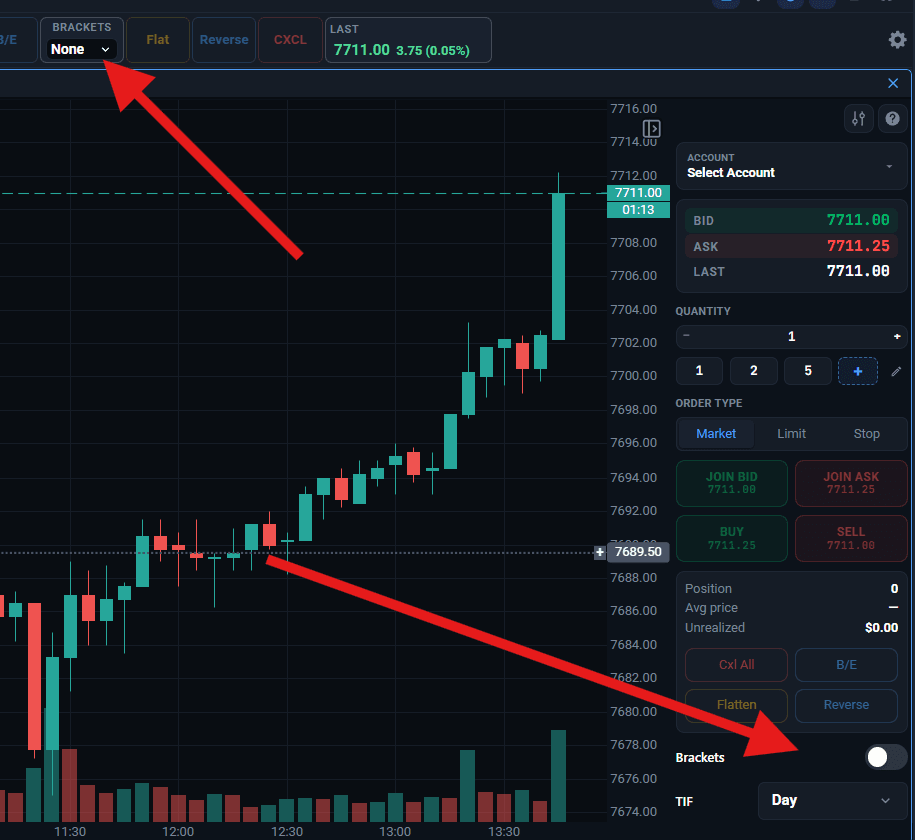
Regardless if you are using the Top Bar order panel or the side chart order panel, there is a section that says Brackets. This will take you to the next part of the process where you can select Simple or Multi Brackets.
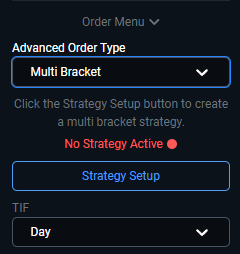
If it's your first time accessing the multi-bracket menu, it will show up as inactive, since nothing is set up yet. To start setting up your bracket order, select the “Strategy Setup” button.
The next window that you will see will have a blue “Add Bracket” button in the center. Clicking this button will create a new bracket – create as many as you need using this. Below is an example of two brackets. Note that for every bracket you add, a take profit, a stop loss, or both can be enabled separately. Each bracket will begin with a quantity of 1.
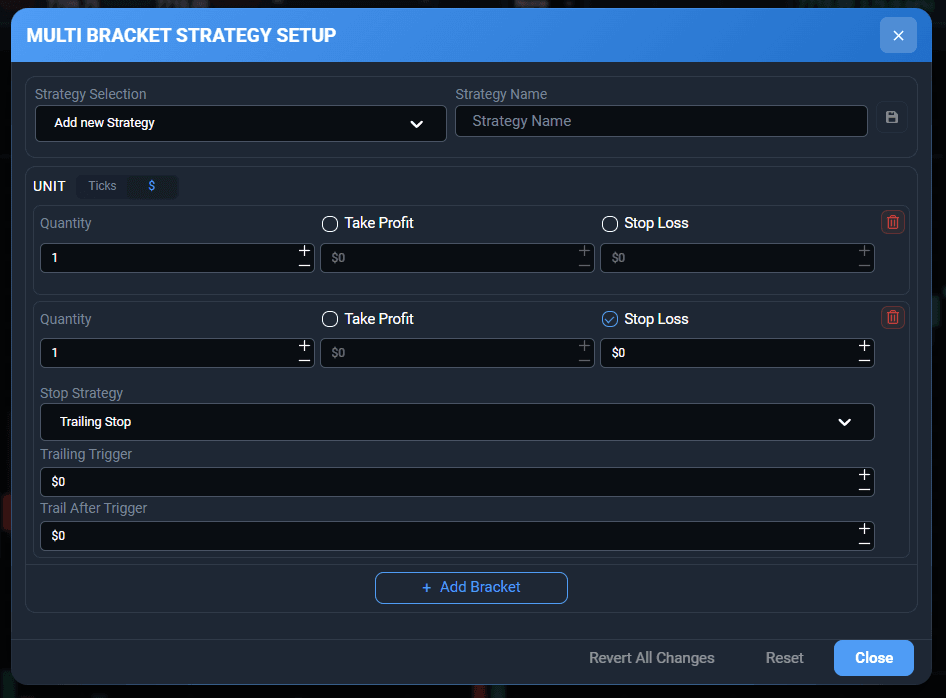
Any brackets that are no longer in use can be deleted using the red trash can icon to the right.
Also, every multi bracket that has a stop loss level can be set up with an advanced stop strategy such as a trailing or a breakeven stop. Make sure to take a look at the related articles below about simple brackets, breakeven stops, trailing stops, and so on for more information!
Saving Multi-Bracket Strategies
To save a bracket strategy that you have set up, simply give it a name in the “Strategy Name” field at the top, and click the Save button that looks like a small floppy disk to the right.
In order to load a strategy that you’ve previously saved, select it in the “Strategy Selection” dropdown. Doing so will automatically populate all of the brackets that were previously saved under that entry.
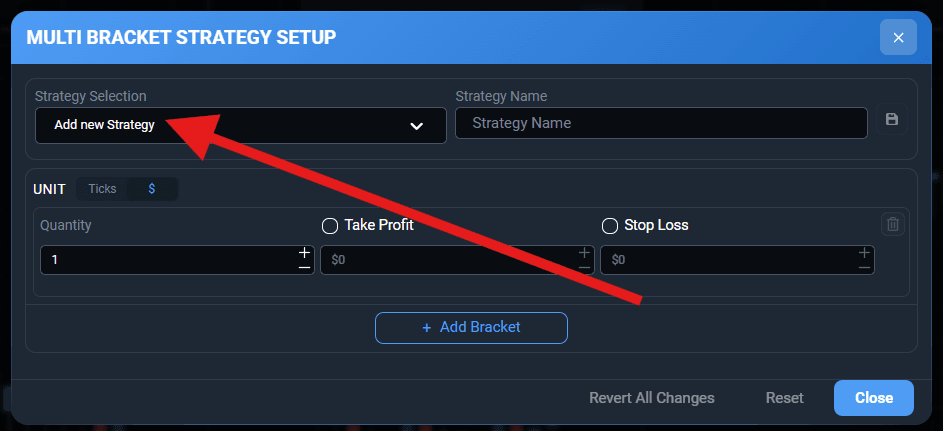
Saving and using the multi-bracket strategy
Once all of the brackets have been configured, be sure to click the floppy disk (save) icon and then click the “Close” button. If you are using the side order panel, please note how the green “Strategy Active” label is showing under the Brackets menu now. If you proceed with placing a trade at this point, all of the brackets within that strategy will be applied to the trade. In the top bar order panel, the word "Multi" will display under Brackets.
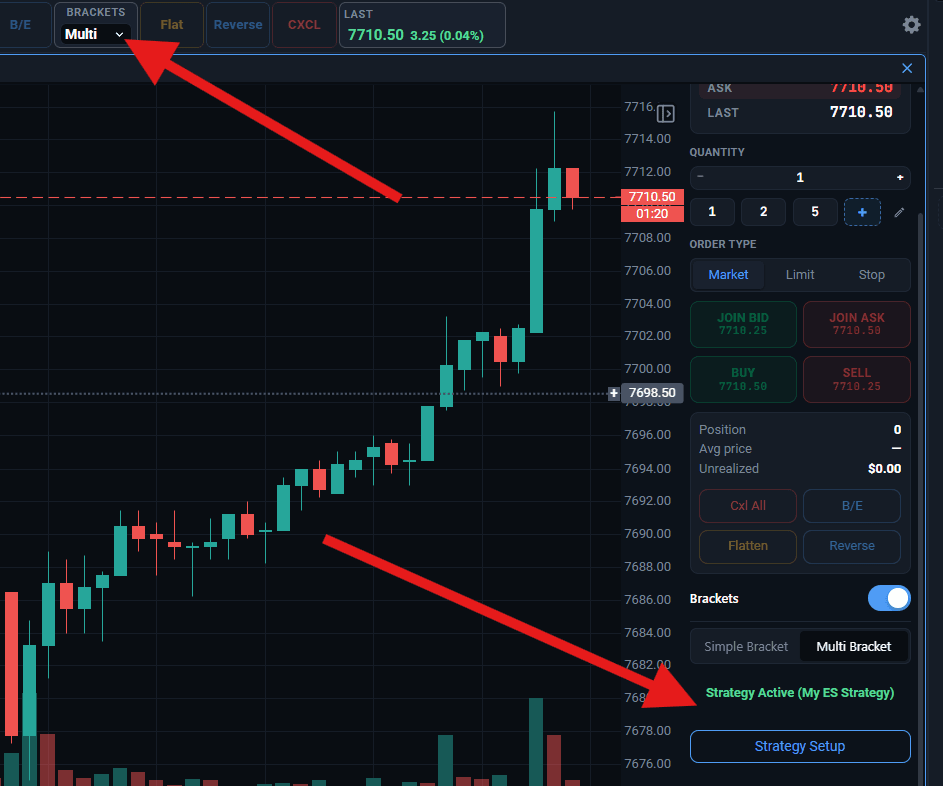
If you decide to edit the multi-bracket, just click on the “Strategy Setup” button again or the Multi button in the top bar!