Categories
Order Panel
Execute your trades quickly and confidently!
To access the Order Panel, head to the Charts Page and make sure you are connected to a broker. Once connected, you will see the Quick Order Panel sitting just above the Chart Toolbar. To open the full Order Panel, tap the "Order" button within the Quick Order Panel.
Note: The Quick Order Panel can be hidden at any time by tapping the carrot (v) icon on the far right of the menu.
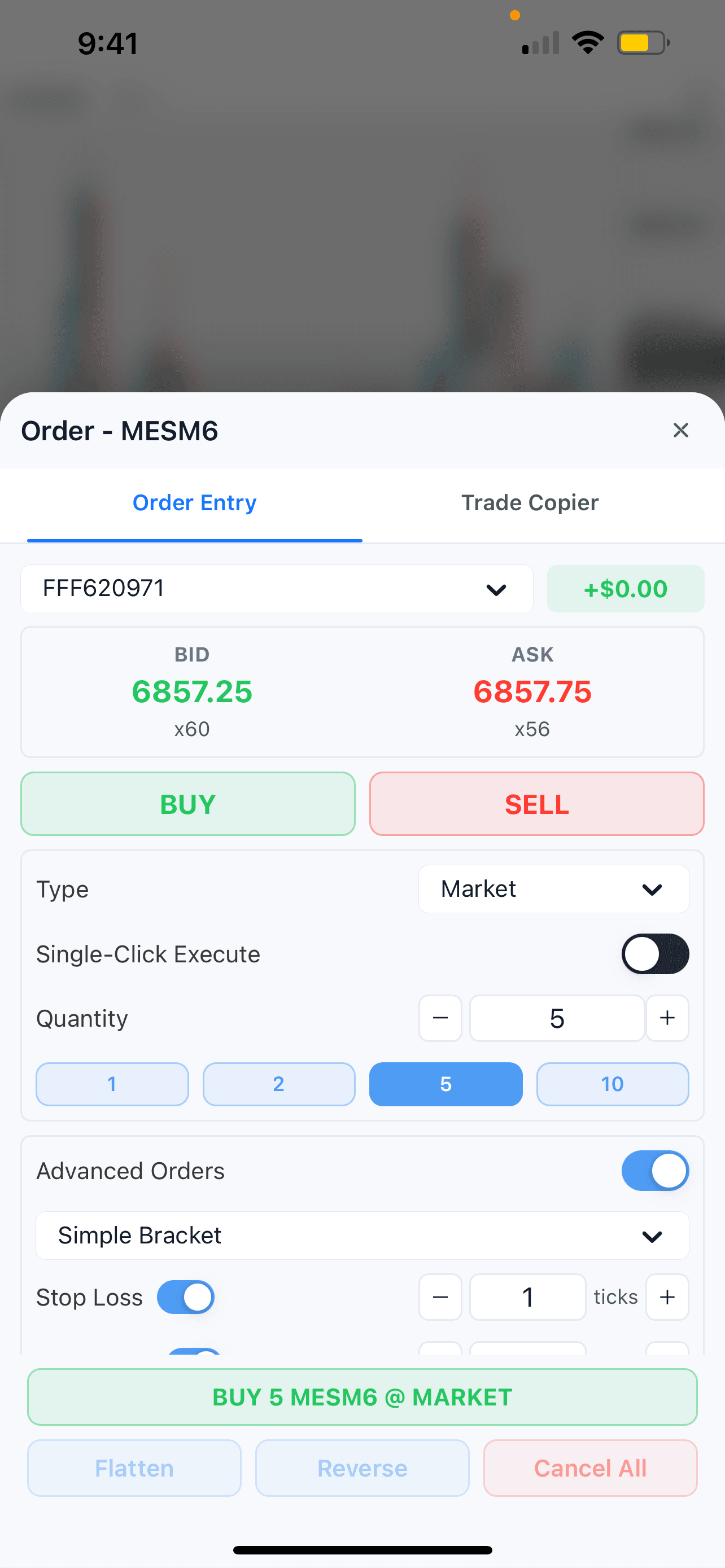
Once inside the full Order Panel, you will see the following:
Prop Account — If you are connected to a prop firm, you can easily switch between your different accounts by tapping the account dropdown at the top of the Order Panel.
Buy/Sell Toggle — Select whether you are buying or selling. This toggle will update the confirmation button at the bottom of the Order Panel accordingly.
Order Type — By default, the Order Panel is set to Market orders. Tap the Type dropdown to switch to Limit or Stop orders. When selected, a price field will appear below allowing you to set your desired price level. You can also place Limit and Stop orders directly on your chart using a long press!
Single Click Execute — Enabling this toggle activates the Quick Order Panel. All order settings configured within the full Order Panel — including bracket strategies and contract sizing — will be applied when executing through the Quick Order Panel.
Quantity — Adjust the contract sizing for your order.
Advanced Order — This is where you will find your simple and multi-bracket order setups.
Pending Orders — Any active Limit or Stop orders within your selected account will appear here.
Watch the video below on how to create a Simple Bracket and what it looks like on a chart. The video also covers how to manually move the orders on the chart as well.