
Creating Workspaces
Updated
Combine multiple layouts together and create your ultimate set-up work Workspaces! ⚡
When you create a Workspace, you can combine custom layouts you made, as well as Premium and Basic layouts that have already been pre-built for you! When you select the Workspace each day, different web browser tabs will open, taking you to that specific layout.
If you have multiple monitors and you want WealthCharts on each of them, this means you need to take advantage of the Workspace feature!
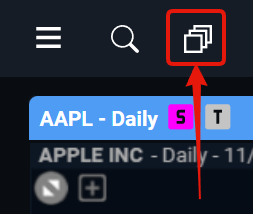
Select the icon in the top left corner, just to the right of the symbol search bar. You will then be taken to the Workspaces menu where you can choose your previous Workspaces or make a new one!
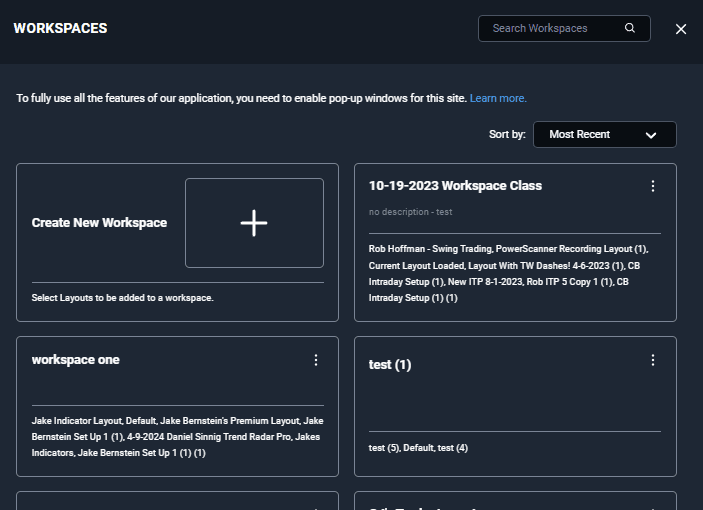
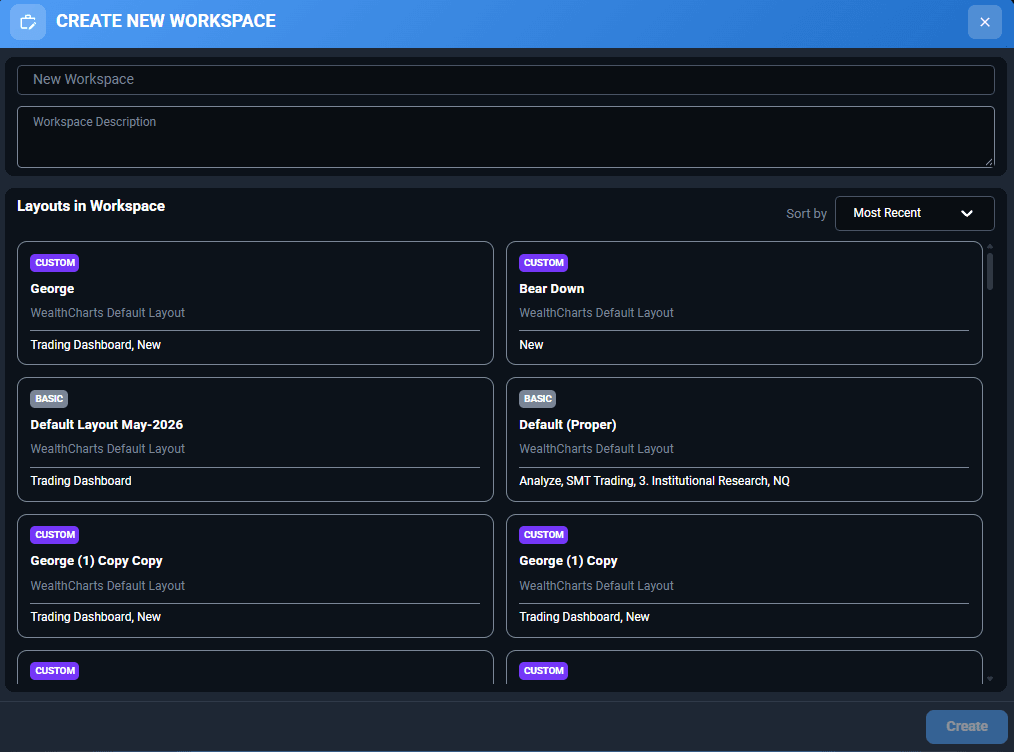
When creating a new Workspace, be sure to include a Workspace Name and at least one layout from the list below. Be sure to sort the layouts if you are having difficulties finding yours. Once you're finished, be sure to click the blue Create button at the bottom right.
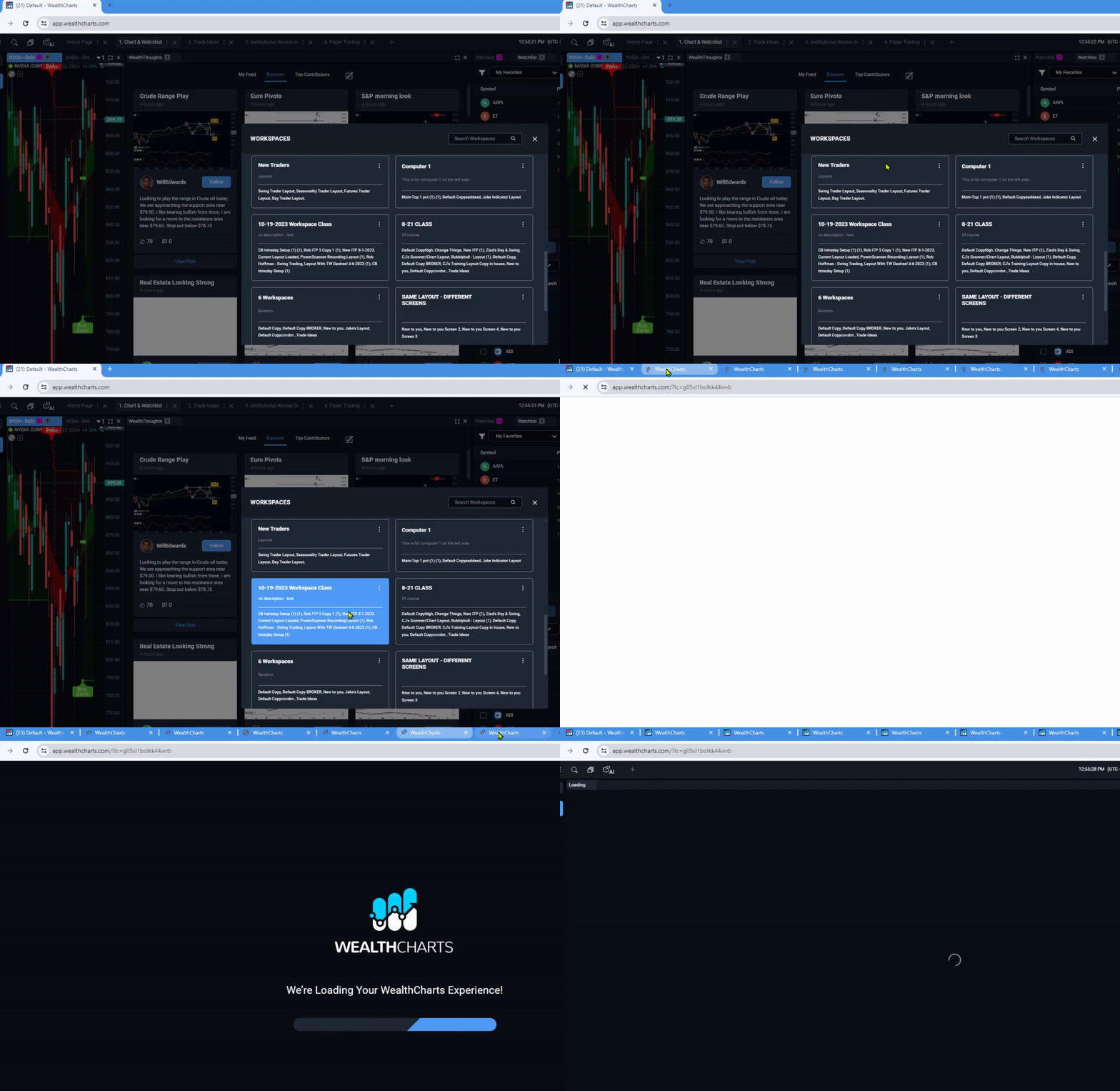
As a reminder, please make sure your pop-ups have been enabled for WealthCharts.
ENABLE POP-UP WINDOWS
To fully use the Workspaces feature, you need to enable pop-up windows for this site.
To enable pop-up windows:
Google Chrome: Click the three dots in the top right corner > Select Privacy and Security on the left side menu > Click Site Settings > Click Pop-ups and redirects.
To allow pop-ups for all websites, select Sites can send pop-ups and use redirects
To allow pop-ups for a specific website only, go to the "Allowed to send pop-ups and use redirects" section, click Add, and enter https://app.wealthcharts.com/
Firefox: Click the three horizontal lines in the top right corner > Select Settings > Click Privacy and Security > Scroll down to the Permission section > Next to 'Block pop-up windows' click the 'Exceptions' button > Type or paste the website > Click Allow and then click Save Changes
Safari: Click Safari in the top left menu then choose Settings > Click the website tab on the top of the window > Scroll down the left sidebar and click Pop-up Windows
To allow pop-ups for a specific website currently open, select Allow from the drop-down menu next to that site.
To allow pop-ups for all websites, click the When visiting other websites menu at the bottom-right and choose Allow
Edge: Click the three dots in the top right corner > Select settings > Click Privacy, search and services on the left side > Scroll down to site permissions > Select All Permissions > Click on Pop-ups and redirects > Under the Allow section, click Add > Type https://app.wealthcharts.com/, then click Add
Please note that instructions may vary slightly based on your browser version. If you still have trouble, refer to your browser's help or support site.