
Interacting with Dashboards
Updated
Dashboards are an incredibly convenient way of switching between different sets of charts and tools, which is especially valuable if you are limited to only a single screen. Dashboards can be opened, closed, and created as needed, and of course, saved for later use in the current or other layouts.
You will find all of the Dashboards that are currently open within your layout at the top of the WealthCharts screen – each Dashboard can be selected by clicking on it, and closed by using the “X” button next to the Dashboard name.

You will also find a button with three dots next to each Dashboard name, which allows you to perform a couple of actions with your Dashboards:
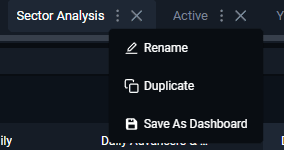
Rename
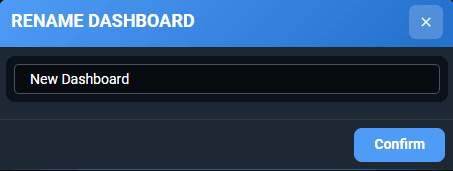
Clicking on this calls up a window that allows you to rename your Dashboard. Type the new name in here and click on “Confirm” to save the change.
Duplicate
Selecting this immediately creates a duplicate copy of your current Dashboard. The newly created Dashboard will have “Copy” added to its name.

Save As Dashboard
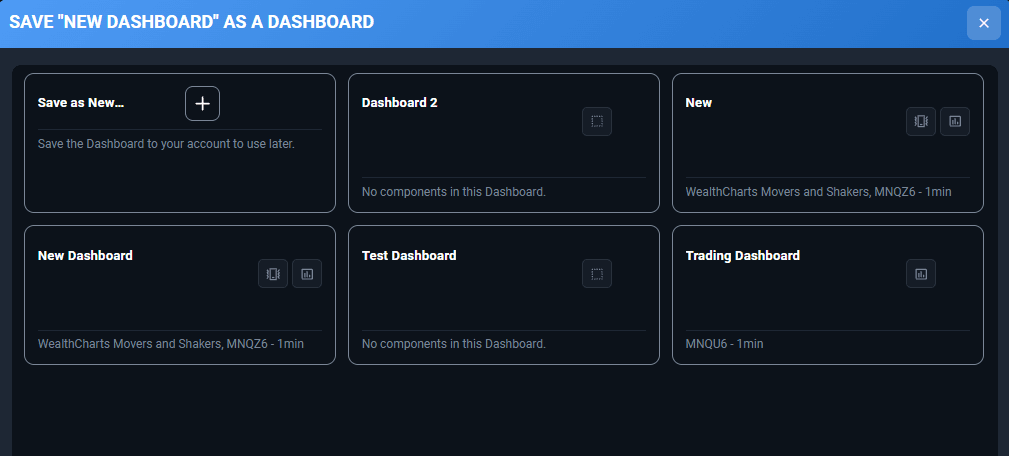
This allows you to save the Dashboard for later use in this or other layouts. Please note that saving a dashboard is not the equivalent of layouts – this will only save this particular dashboard, and of course, any of the content within it – charts, indicators, scanners, research tools, etc.
Clicking on this calls up a window with a list of all dashboards that you have saved in the past. Here, you can select “Save As New Dashboard” to save it as a brand new one, or select one of the existing Dashboards to overwrite them.
Opening Dashboards
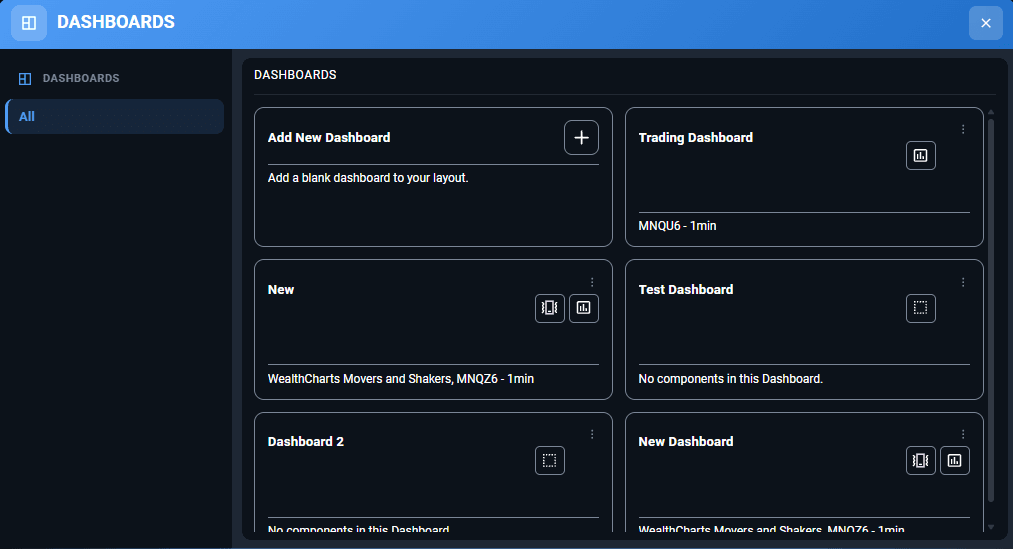
Dashboards can be opened using the “Add Dashboard” button to the right of the dashboard list (looks like a “+”). Clicking it takes you to a window with a full list of dashboards that are available to you.
If you click on “Add New Dashboard” here, you will be prompted to name and create a brand-new dashboard from scratch. The dashboard will initially load up blank and can then be populated with any of the charts, features, and scanners that you would like to have in it.
Dashboards that are listed here also have a three-dot button that allows you to access some of the management options for them. Using this dropdown, you can also rename, duplicate, or even completely delete your dashboard.
Tip: Did you know that you can move Dashboards? Simply place your cursor over the dashboard you want to move and hold down the left button on your mouse.. Drag your dashboard to the left or right to reorder them.