Rob Hoffman - ITP Bundle Setup
Updated
Here at WealthCharts, we make trading and getting set up easy for you. Once your WealthCharts account has been authorized, the setup is essentially done!
1. Once you are authorized for the ITP Indicators, you will receive an email verifying the authorization and it will have some instructions as well as helpful links that will take you to a couple of different areas here in the WealthCharts Knowledge Base.
2. To find the training for the ITP indicators, be sure to load the WealthChartsTV component and locate the red folders that have Rob Hoffman's name on them. Click here to learn more about WealthChartsTV!
You can also click on the link below to go back to the Become A Better Trader website, log into your Become a Better Trader account, and review the on-demand ITP training videos!
https://www.becomeabettertrader.com/rob-hoffman-institutional-trader-package-resource-center/
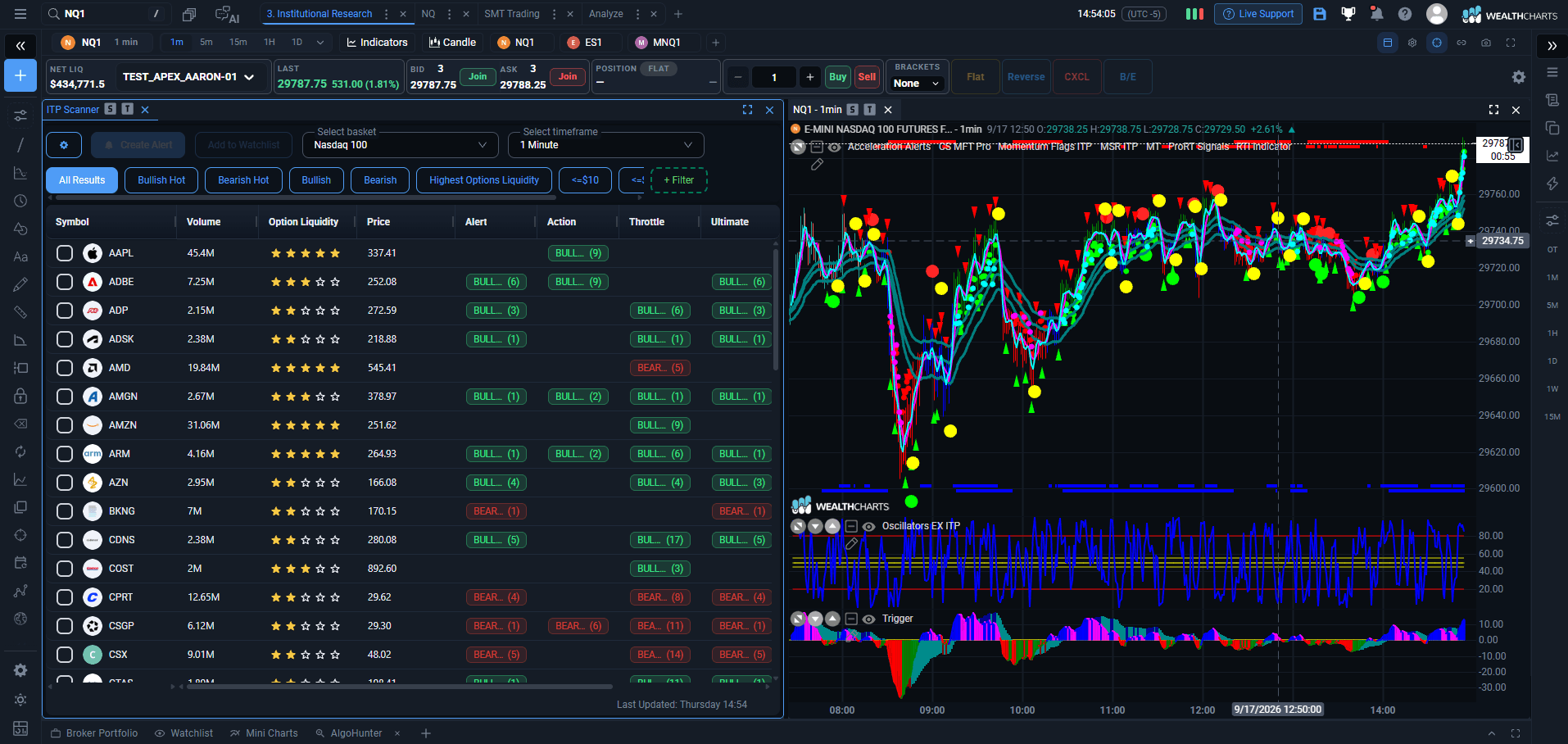
3. To find the ITP Indicators on WealthCharts, you can right-click anywhere on your chart and then select Add Indicators. Refer to the bottom left corner of the Indicators Menu and you will see the Marketplace section. You will want to select Rob Hoffman's name and then the ITP will appear on the next page. Add individual components from the ITP or the whole package by selecting "Add All" at the top.
4. To find the ITP Scanner, you will want to click on the Main Menu icon located at the very top left corner of the platform. After that, select the Marketplace button under the ADD-ONS section. You will see the ITP Scanner in the list to the right. Apply it to your screen and the scanner will load up!
Below is a sample image of what the default look is for the ITP Indicators and Scanner: