
Switching Default Layouts
Updated
When WealthCharts first loads, it is looking for a layout to display. Specifically, a default layout.
You can change your default layout at any time! To get started, follow the steps below:
Click on the Main Menu icon at the top-left corner
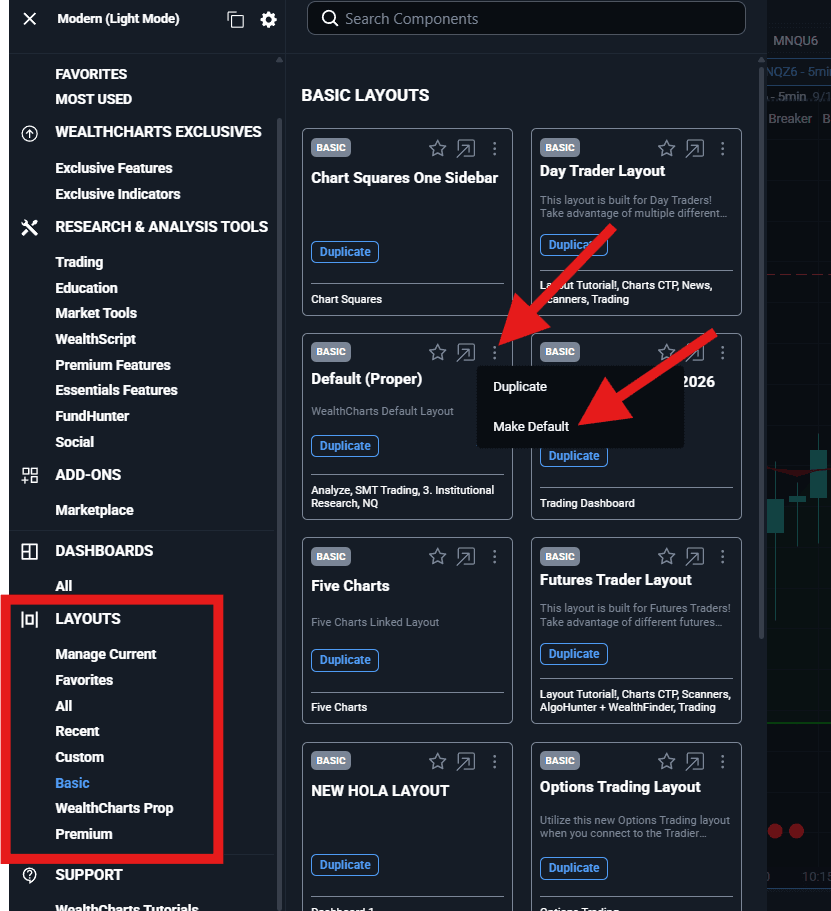
Scroll down to the Layout section at the bottom
Select the category that has your layout, such as All, Recent, Basic, or Premium,
Select the three vertical dots at the top right of the layout you wish to make your default
Select Make Default
You will receive a confirmation notification at the bottom indicating that your Default Layout has been successfully changed!
After following this process, the next time you reload your web browser or log out then log back in, the default layout will load!
For more information about layouts, click here!
Was this helpful?
Related guides
Creating WorkspacesInteracting with DashboardsSaving, Importing, and Exporting LayoutsThe differences between Premium, Basic, and Jumpstart layouts
Still stuck? Contact support — phone, chat or email, staffed while the market is open.