Categories
Settings
From billing to visuals to trading, customize your platform settings the way you want to!
To get started, be sure to log in to your WealthCharts account and then select the gear icon located at the bottom left corner. When you hover over the icon, it will say Settings.
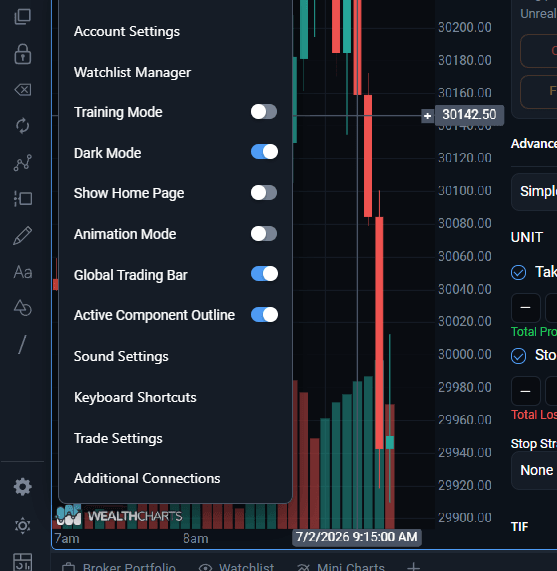
Review the list below to learn more about each option in the Settings menu!
Customize Favorites Bar - Click here to learn more!
Account Settings - Click here to learn more!
Watchlist Manager - This controls which Watchlist is your default for each scanner in WealthCharts! Click here to learn more about Watchlists.
Training Mode - Click here to learn more!
Dark Mode - Click here to learn more!
Show Home Page - This option allows you to disable the first Dashboard that appears on each of your new layouts called Home Page. Click here to learn more about Home Page shows.
Animation Mode - This setting allows menus to have a faded animation when they appear and disappear on your platform. Turning this setting off may help with browser resources while you are utilizing WealthCharts.
Global Trading Bar - This setting allows the trading bar to display at the top of your platform that is connected to your accounts. Turning this off will make an icon appear at the top right of your charts so you can go back to having a top trade bar for individual charts.
Active Component Outline - This setting displays a a nice visual outline over the feature your account is currently focused on. For example, if you are looking to change a symbol or timeframe of a chart, it's going to focus on the chart that has the outline first.
Sound Settings - Click here to learn more!
Keyboard Shortcuts - Click here to learn more!
Trade Settings - These are your global Trade Settings where you can turn on/off Trade Confirmations, Trade Commissions, Hidden Orders on your Trading DOM, and the default placement of your Trading Bar. Hidden Orders are messages that display at the top or bottom of your TradingDOM. They indicate that you have an outstanding order that is "out of view".
Looking to change ticks to $ values on your Take Profit and Stop Losses? Trade Settings is the menu you will want to review to make that change to your account. To change the tick and $ values on your Position, you will want to review Global Chart Settings
Additional Connections - This is where you can log into accounts that are connected via Rithmic. Please note that as of May 2025, we do not support Apex-Rithmic accounts.