Categories
About UsHow to get startedAccount AccessBrokers and TradingChartsScannersResearch ToolsCommunityStocksOptionsFuturesAlertsTrading DOM - Mobile App
See real-time quotes and bid/ask sizes LIVE on the WealthCharts Mobile App with the Trading DOM!
If you are looking for your Trading DOM on your WealthCharts Mobile App, follow the steps below:
- Log in to the mobile app
- Select the WealthCharts logo in the bottom navigation menu
- You must log in to your brokerage account in order to see the Trading DOM. After completing this step, there should be a moneybag icon at the top right corner
- A dashboard at the bottom half of your screen should appear with a new horizontal navigation menu. If you swipe it to show more items on the right, you will see Trading DOM.
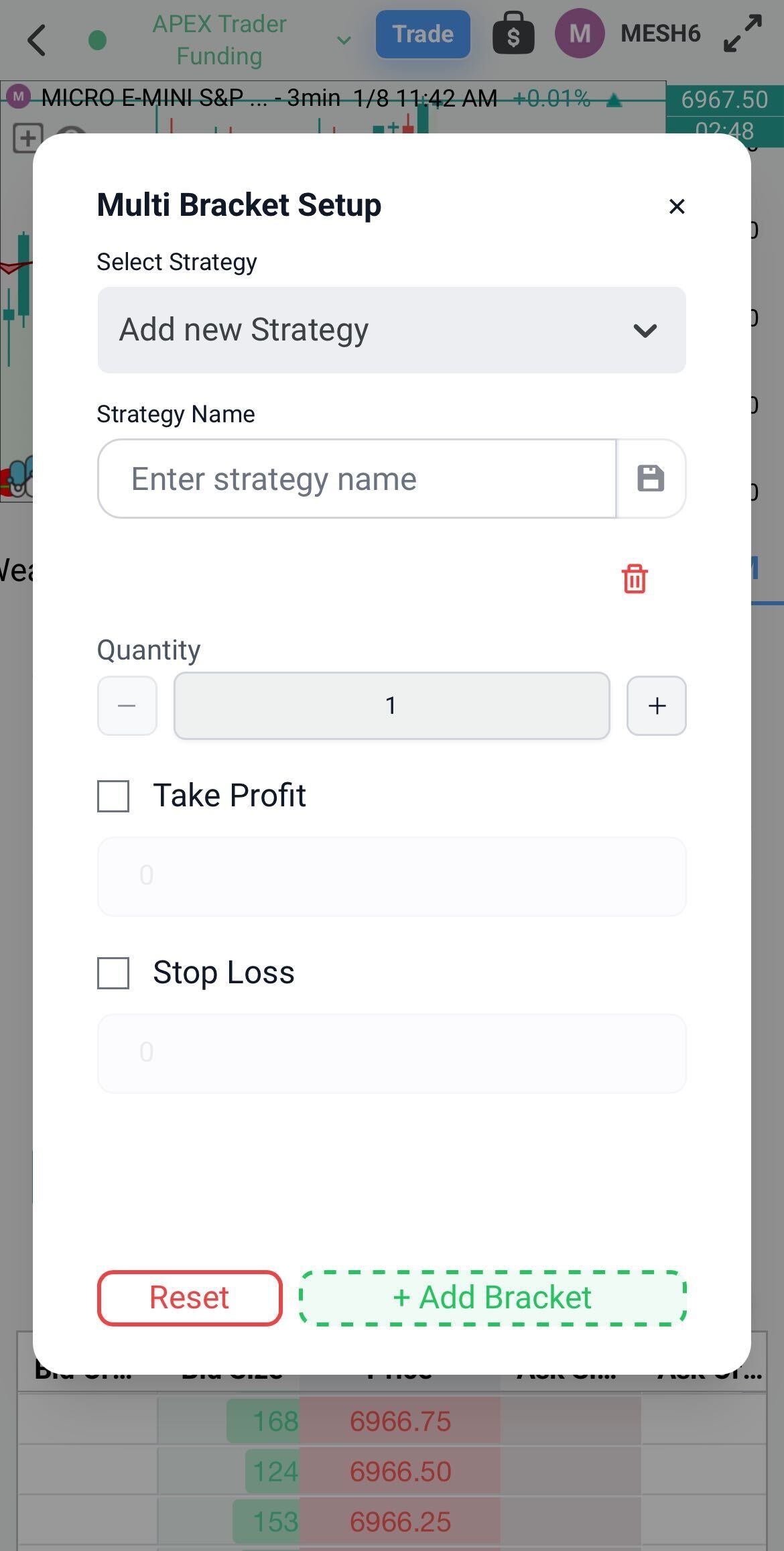
In the Trading DOM, you can place market orders, simple bracket orders, multi-bracket orders, and more. You can place your orders directly on the Trading DOM Ladder by tapping on the cells within the Ask Size or Bid Size columns.
Looking for more columns to display in the Trading DOM like the Ticks, Points, and PnL? Tap the gear icon at the top right of the DOM Ladder and you will see those options.
To adjust the Auto Center setting, tap on the lock icon for the different adjustments. This will lock price in the center of the DOM Ladder or it will allow it to move up and down.
Please see the video below for a visual aid on how to load up and start using the Trading DOM!