Categories
About UsHow to get startedAccount AccessBrokers and TradingChartsScannersResearch ToolsCommunityStocksOptionsFuturesAlertsWCProp Broker Portfolio - Mobile App
Keep track of your trades and account details no matter where the day takes you!
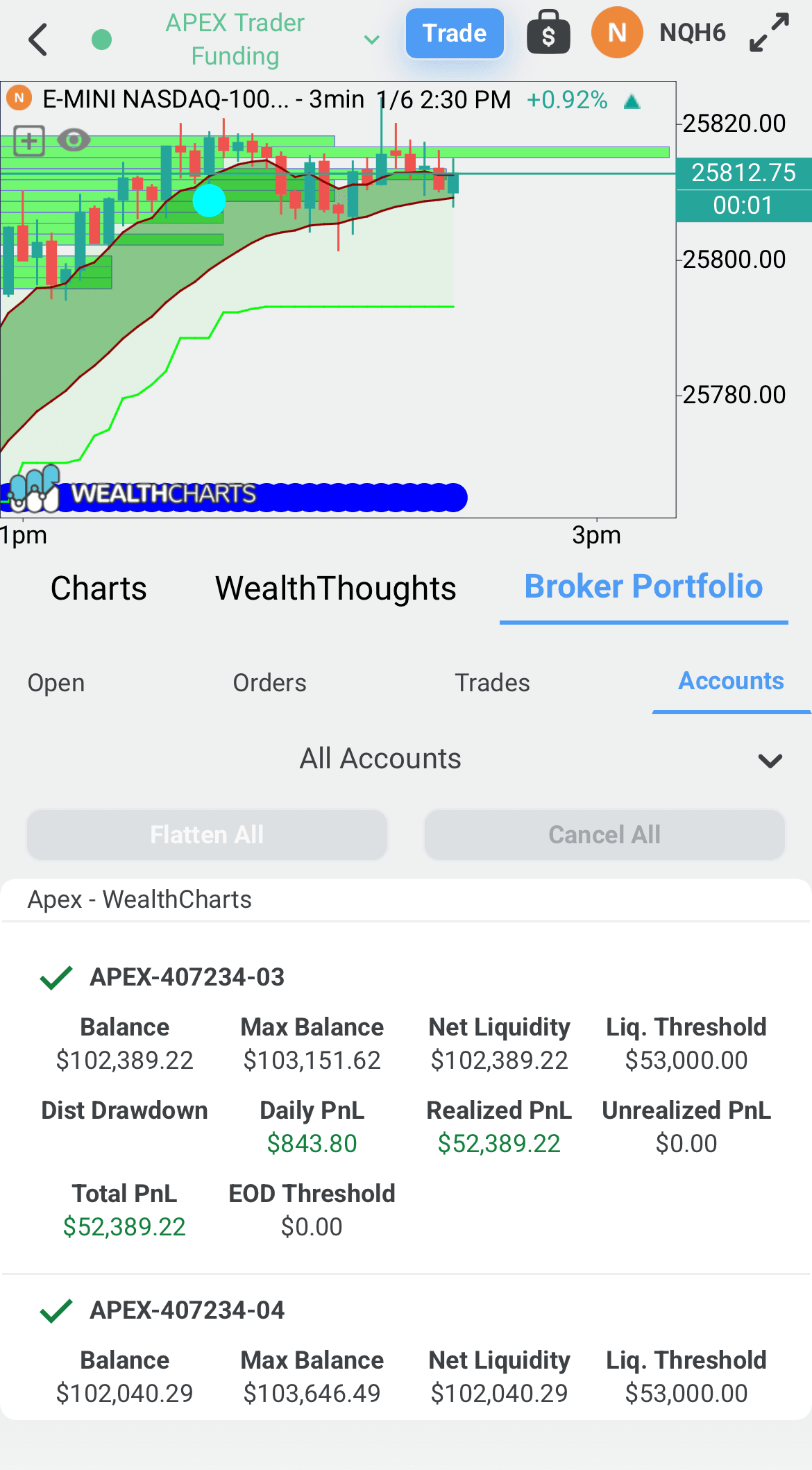
The Broker Portfolio in the WealthCharts Mobile App is your go-to for monitoring your trades on the go. To find it, follow the steps below:
- Log in to the mobile app
- Select the WealthCharts logo in the bottom navigation menu
- You must log in to your brokerage account in order to see the Trading DOM. After completing this step, there should be a moneybag icon at the top right corner
- A dashboard at the bottom half of your screen should appear with a new horizontal navigation menu. If you swipe it to show more items on the right, you will see Broker Portfolio.
After you connect, there will be different portfolio tabs that will appear that shows you different information. For Apex Trader Funding members, you will see Open, Orders, Trades, and Accounts.
Open: This shows you all open positions that are currently in your account.
Orders: This shows you all of the orders you have placed in your accounts.
Trades: This shows you all of the orders that have gained Profit or Loss in each of your accounts.
Accounts: This shows you information about your Apex accounts like total PnLs, Dist Drawdown, Liquidation, Balances, and so on.